Batch Convert to TIFF from Command Line
2TIFF image conversion software is a professional command line utility for converting office documents and images to TIFF in batch mode. Based on simple command line syntax, it can be used on a PC, server, or built-in to any application allowing you to automate repetitive conversion tasks with just one command.
Command Line Syntax and Usage
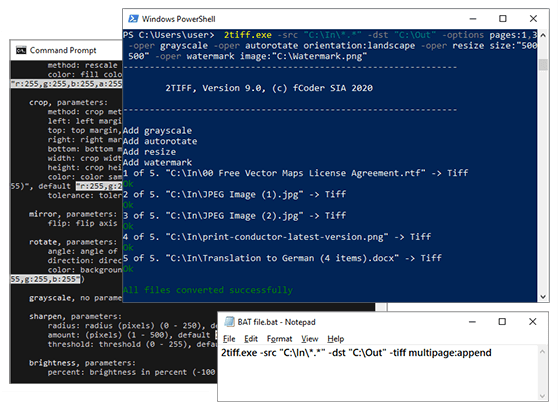
2TIFF image converter software can be called from Windows Сommand Prompt, PowerShell, or any other command line interface (CLI). The conversion tasks can also be automated through scripts. To view all switches and parameters, open any command-line interpreter, and execute 2TIFF.exe command. You can modify it to:
- Convert all files in a folder and save them in another directory:
2tiff.exe -src "C:\In\*.*" -dst "C:\Out"
- Convert all files from a list:
2tiff.exe -src "@C:\Lists\list.txt" -dst "C:\Out"
- Convert only selected pages, apply autorotation, watermarking, and resizing:
2tiff.exe -src "C:\In\*.*" -dst "C:\Out" -options pages:1,3 -oper grayscale -oper autorotate orientation:landscape -oper resize size:"500 500" -oper watermark image:"C:\Watermark.png"
With 2TIFF, you can also configure: output files naming, type and level of TIFF compression, merge or split options, image cropping, post-processing actions, and many other parameters. These are just a few examples – you'll find a great variety of customizable conversion options on our syntax page.
Features

Convert Multiple Files at Once
Easily convert any number of documents or images to TIFF within one session. You can process all or certain file types only (e.g., via .pdf mask). For each session, you can define page range, set up processing of attachments, use templates to rename output files, select multiple sources, enable or disable subfolder recursion, and more – all in one command line.
110+ File Formats Supported
2TIFF has a wide range of supported formats – you can convert PDF to TIFF, JPG to TIFF, PNG to TIFF, and other filetypes. Automate the conversion of PDFs, Word and Excel documents, PowerPoint presentations, images, text files, AutoCAD drawings, HTML pages, worksheets, shipping labels, invoices, and many other file types often used in any office.

Automate File Conversion through Scripts
Run 2tiff.exe commands at a specified time via command line interface, script, or a batch file! Using 2TIFF with Windows Task Scheduler lets you schedule file conversion to TIFF from a selected folder at a specific time, e.g., daily or weekly. Just set a time- or event-based trigger via Windows Task Scheduler and a BAT, CMD, PowerShell, or VBScript.

Add a Text or Image Watermark Automatically
Protect your projects from unauthorized use or add some extra information to output TIFF files with 2TIFF. Adjust and add text or image watermark by setting its position, size, font style, overlay method, and other parameters. Besides, you can select a specific page range for the watermark.

Post-process Converted files: Move, Copy or Delete
Decide what should be done with the original files after conversion to TIFF. Set up post-processing as an additional operation that can be applied to both source and resultant files. Available post-processing actions are: do nothing, move or copy to another location, or delete.

Use Image Editing Features: Crop, Resize, Flip, Rotate, Compress, and more
Quickly resize image files in batch mode while keeping proportions of the source document. 2TIFF allows users to rotate, mirror-flip, and crop images automatically. The images can also be converted to grayscale or edited by adjusting the sharpen filter, applying auto levels, contrast, or brightness.

Feedback from a customer
fCoder has done a great job! I use the 2TIFF program for processing my image files. The fact that I have the flexibility to set the parameters needed to process an entire directory of image files is very efficient and convenient. You can't beat the price for these programs, and the support you receive is top-notch. I have had a couple of situations, in which the support team was able to solve to my satisfaction in a very timely manner. If you work with a variety of image formats, you can't go wrong with this set of programs.
– Paul Hawkins, Dundas, Ontario

Download Free Version
Download the free version of 2TIFF that allows you to evaluate the software and use it for non-commercial needs. The free version offers all the available features of the program. The only thing that makes it different from the commercial version is a special watermark added in each page's corner.
Support Service
Please contact us via the support form if you have any questions about 2TIFF software, if you want to get a quote, or if you need any assistance or advice.
Price and Licensing
The commercial license costs $149. Please visit the order page to see all the licensing options.
Volume discounts are available starting from a 5-users license. There's a special price for governmental and non-profit organizations. Resellers and partners are welcome to join our worldwide distribution network! Please contact us for more information.
2TIFF News

fCoder 2TIFF Works from Windows PowerShell
2020-06-11